Up Cloud Gaming internet requirements are simpler than most players expect: you do not need the fastest plan on the market, but you do need a connection that is fast enough, responsive, and steady for the whole session. Because the game is streamed rather than installed, your network is part of the hardware.
This guide breaks down what Up Cloud Gaming APK asks from your connection, how to judge your current setup honestly, and which small changes make the biggest difference before you spend anything on upgrades.
What Cloud Gaming Actually Asks From Your Connection
Cloud gaming moves the heavy work off your phone. The game runs on a remote server, and your device receives a live video stream of the action while sending your taps and controller inputs back. That means your internet connection is not just downloading a file at the start — it is carrying the whole game, every second you play.
Three things decide how that feels: download speed, latency, and stability. Speed decides how much picture detail the stream can carry. Latency is the delay between your input and the response on screen. Stability is how steady both of those stay over time, and for most players it matters more than a headline speed number.
Think of the stream as a conversation that never pauses. Your inputs travel up, the server reacts, and a fresh picture travels down, dozens of times every second. Anything that interrupts that conversation — a dipping signal, a congested network, a long route to the server — shows up in the game as softness, delay, or a brief freeze, which is why connection quality deserves more attention than any in-game setting.
The Speed Ranges That Work Well
As a practical guide, a steady download speed of around 10 Mbps is a workable floor for standard-definition play, while 20 to 25 Mbps or more gives the stream room for a sharper picture and smoother motion. Faster plans help, but a clean 25 Mbps line will usually feel better than a noisy 100 Mbps line that keeps dipping.
Upload speed matters less, because the phone mostly sends small input signals, but a very weak upload can still add delay. If your plan advertises high download speeds yet the game feels heavy, the problem is rarely raw speed — it is usually latency or interference, which the next sections cover.
It helps to picture your household's total demand rather than the game's alone. The stream's share is modest, but it queues behind everything else: a partner's video call, a child's lesson, a console downloading an update in the corner. When several of those coincide, the stream is the first to suffer visibly, because it is the only one that cannot buffer its way through a busy minute. This is why a connection that tests beautifully at noon can disappoint at eight — the line did not change; the queue in front of your game did.
Latency: The Number You Feel
Latency, often called ping, is measured in milliseconds. Under about 40 ms, inputs feel direct and responsive. Between 40 and 80 ms, most games still play comfortably, though fast shooters and fighting games start to feel soft. Above 100 ms, delays become obvious in almost every genre.
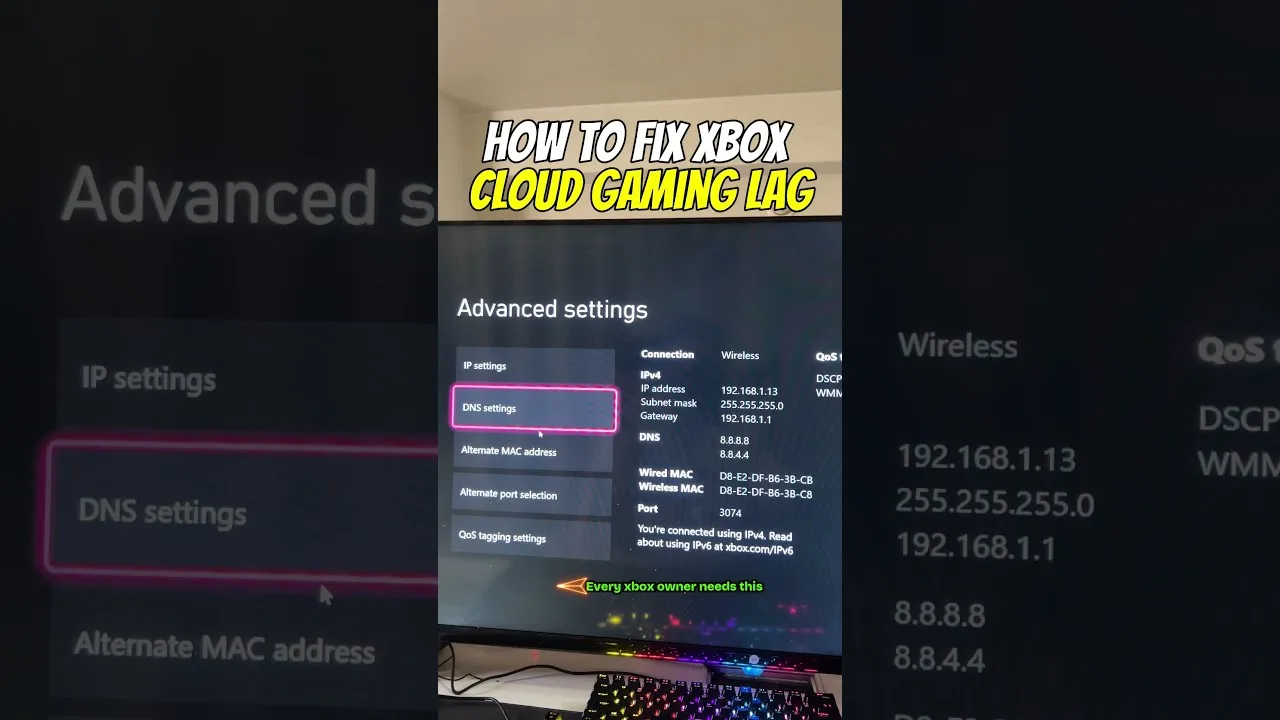
Distance plays a part: the farther your data travels, the higher the latency. Playing on a home connection in the evening, when the network is busy, can also add delay. If lag is your main frustration, our guide on how to reduce lag in Up Cloud Gaming walks through the fixes step by step.
You can measure your own latency with the ping result from any speed test, but treat the number as a snapshot rather than a verdict. Run the test a few times across an evening: a connection that reads 25 ms at midday and 90 ms at eight in the evening has an evening problem, and your gaming schedule or network setup should adapt to that reality rather than to the best number you ever saw.
Wi-Fi, Mobile Data, and Wired Options
Wi-Fi is the most common way to play, and a 5 GHz network is usually the better choice because it is faster and less crowded than 2.4 GHz, as long as you are reasonably close to the router. Playing in the same room as the router, or one room away, makes a real difference.
Mobile data can work well on a strong 4G or 5G signal, especially outdoors or in areas with good coverage, but it is less predictable than home Wi-Fi. For the steadiest setup at home, follow the practical Wi-Fi tips for a steadier stream in our companion guide, and keep other heavy downloads paused while you play.
A Quick Test Before You Play
Before a long session, run a speed test on the same device and network you will play on. Look at the download result, the ping, and whether a second test gives a similar number. Big swings between tests are a warning sign, even if the top speed looks impressive.
Then play something undemanding for five minutes. If the picture stays clear and inputs feel tight, your connection is ready. If it struggles, fix the network first rather than changing game settings — no setting can fully compensate for an unstable connection.
If the test exposes a weak result, change one thing and test again: move rooms, switch bands, or pause the household's downloads. Methodical testing feels slow, but it finds the actual bottleneck in a household network far faster than random changes, and it stops you spending money on a faster plan when the real problem was a router hidden behind the television.
Final Thoughts
Smooth cloud gaming is mostly about consistency. A stable connection in the 20 to 25 Mbps range, low latency, and a clean Wi-Fi signal will carry most sessions comfortably. Test your setup, fix the weak points you find, and the stream will reward you every time you play.