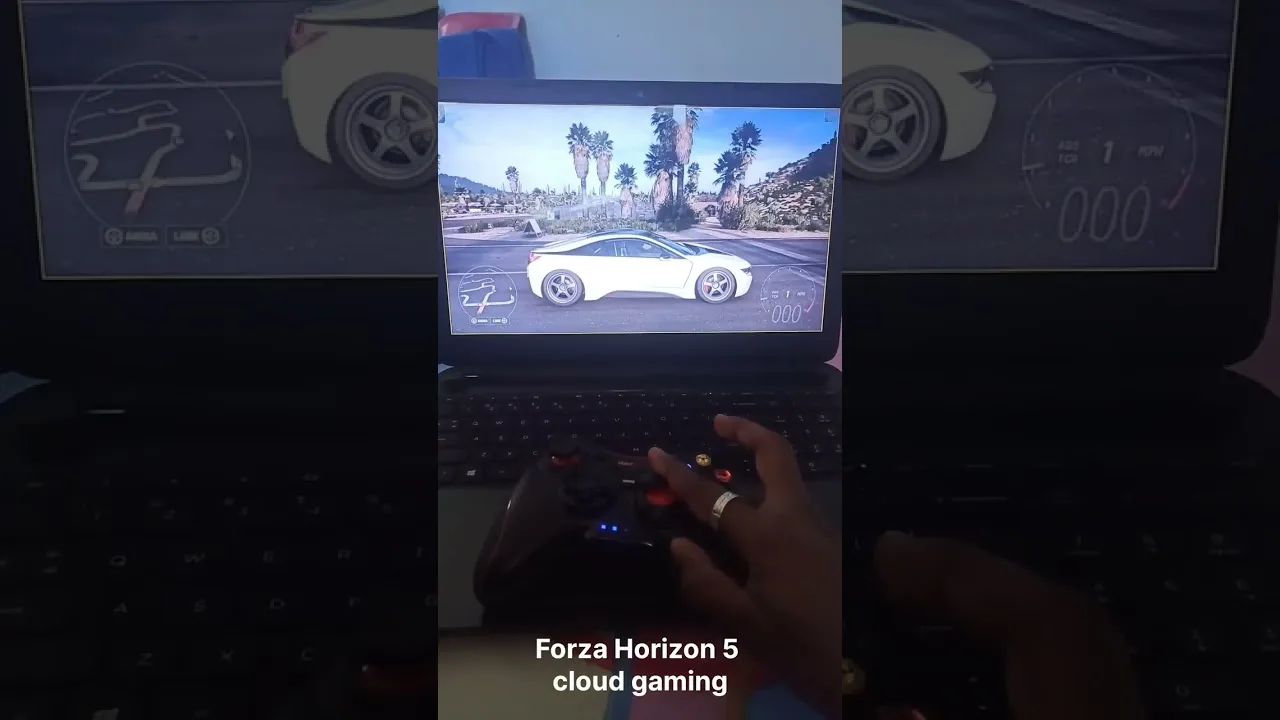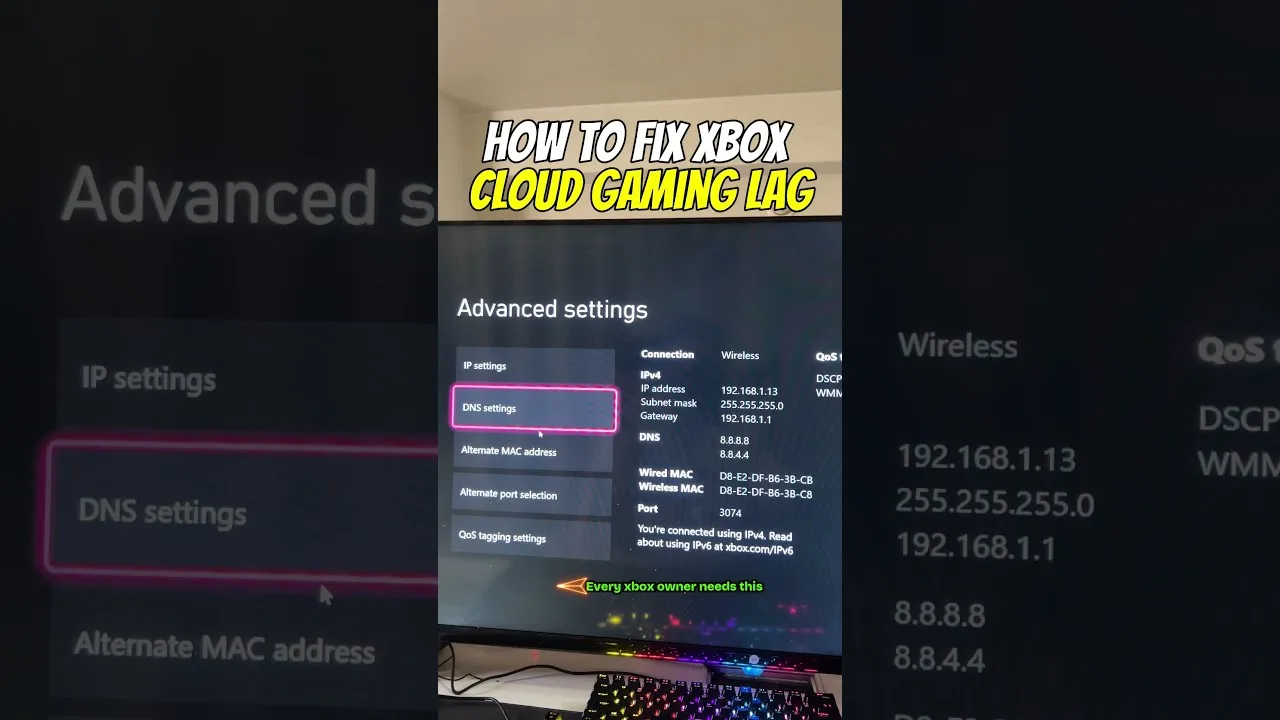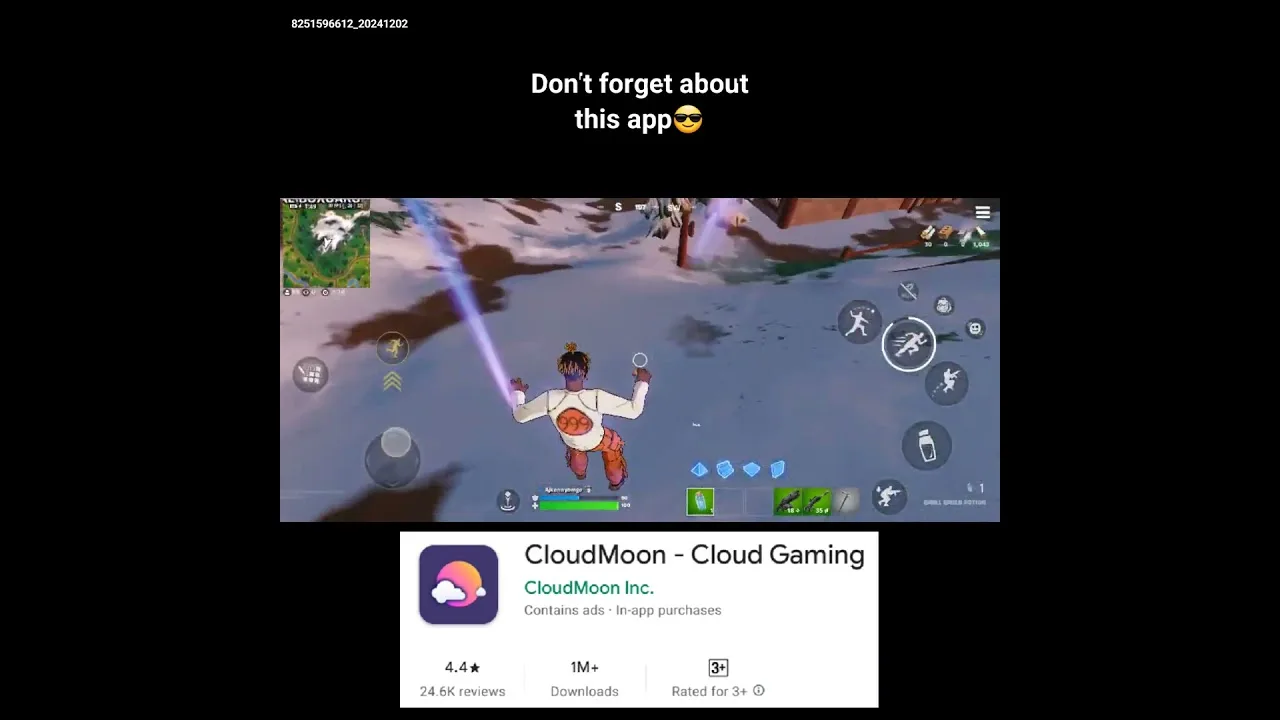
Playing Up Cloud Gaming on a TV means sending the streamed picture from your phone to the biggest screen in the house, so games feel like console sessions instead of phone sessions. The game still runs in the cloud and your phone still runs the app — the TV simply becomes the display.
This guide covers the practical routes for getting Up Cloud Gaming for Android onto a television, what each method costs you in delay or convenience, and the settings that keep a big picture looking good.
Your Main Options for the Big Screen
There are three common routes to the TV. Casting sends the picture wirelessly from your phone to a TV or streaming stick that supports it. An HDMI adapter or cable connects the phone directly, giving the most stable picture. And some smart TVs can receive a cast or mirror the phone screen through their own built-in features.
None of these routes is automatically best. Casting is the most convenient, HDMI is the most dependable, and built-in TV features vary the most. Start with whatever your current TV already supports before buying anything new.
Budget matters less than people expect. Most households already own everything casting needs, and a basic adapter for the wired route costs little. The expensive mistake is buying gear before testing what the TV already supports, so spend an evening experimenting with the free options first and let the results tell you whether anything needs purchasing at all.
Casting From Your Phone, Step by Step
Make sure the phone and the TV or casting device are on the same Wi-Fi network — this is the step that trips up most people. Open the casting option on your phone, choose the TV from the list, and wait for the screens to connect. Then open the app and start your game as normal.
Keep the phone close to the router while casting, because the stream now travels two wireless hops: from the internet to your phone, and from your phone to the TV. Our best ways to use Up Cloud Gaming guide has more session habits that help on any screen size.
One casting detail catches people out: the phone becomes the remote. Volume, pausing, and switching games all happen on the handset, so keep it charged, unlocked, and within reach rather than abandoned in another room. Some players keep an older phone or tablet permanently paired with the TV for exactly this role, which also solves the interruption problem — the casting device holds no calls, no messages, and no social apps competing for the screen. It is a small household system, but once it exists, starting a TV session becomes as thoughtless as switching on a console, which is precisely the feeling the setup was meant to create.
The Wired Route: HDMI Adapters
If your phone supports video output over USB-C, a simple adapter or dock sends the picture straight to an HDMI input on the TV. The image is stable, there is no second wireless hop, and input delay stays as low as your connection allows. For fast games, this is the TV setup we would choose.
Check that your specific phone model supports display output first — not every USB-C port carries video. The checks in our Up Cloud Gaming device compatibility guide will help you confirm what your phone can do before you order an adapter.
Charging is the other practical detail: casting plus gaming drains a phone steadily, and a dead phone ends the session for everyone. Keep a charger at the sofa, or use a dock-style adapter that powers the phone while it outputs video. It is an unglamorous accessory, but it is the one that saves the most evenings.
Settings That Suit a Bigger Picture
A stream that looks sharp on a six-inch screen can look soft on a fifty-inch one. Sit a sensible distance away, raise the stream quality if your connection allows it, and turn off the TV's heavy picture processing where possible. Many TVs have a game mode that cuts processing delay — use it.
Sound deserves a thought too. TV speakers or a soundbar add an echo of distance compared with phone audio, and some setups introduce a slight audio delay. If voices or effects feel late, check the TV's audio sync settings before blaming the stream.
Controllers and Comfort on the Couch
The couch setup only works with a controller; nobody wants to hold a phone while watching a TV. Pair a Bluetooth controller before you cast, test that inputs land where you expect, and keep a charging cable nearby for longer sessions.
Finally, think about interruptions. A phone call or notification can hijack the screen mid-game when casting. Turning on do-not-disturb during play keeps the big screen dedicated to the game and saves everyone's evening.
Finally, agree the house rules for the shared screen. A TV session is a group event even when one person holds the controller: spectators suggest, celebrate, and occasionally heckle. Cloud gaming on the big screen tends to become social in a way phone gaming never is, and most households find that is the best argument for setting it up well.
Final Thoughts
Casting is the easiest start, HDMI is the steadiest finish, and a controller plus game mode ties the whole setup together. Once the picture is on the TV and the delay is under control, cloud gaming stops feeling like a phone trick and starts feeling like a living-room console.