The best controllers for Up Cloud Gaming are the ones that make a streamed game feel like it is running in your hands: responsive sticks, dependable pairing, and a shape you can hold for an hour without thinking about it. Touch controls work, but a real controller changes what you can comfortably play.
This guide explains what actually matters when choosing one for the Up Cloud Gaming app, from the console controller you may already own to telescopic models built specifically for phones.
What Makes a Controller Good for Cloud Gaming
A good cloud gaming controller has three jobs: connect reliably, respond without noticeable delay, and stay comfortable through long sessions. Because the game itself is streamed, the controller is the one piece of hardware you physically interact with — small annoyances like a mushy button or a drifting stick get magnified over an hour of play.
Look for solid analogue sticks, a proper D-pad if you play platformers or fighting games, and shoulder buttons that feel deliberate rather than spongy. Battery life matters too; a controller that dies mid-session is worse than a slightly simpler one that lasts all week.
Comfort deserves more weight than spec sheets give it. Grip texture, button travel, and the weight balance between your hands decide whether a controller fades into the background or nags at you through every session. If you can, hold a controller before buying, or buy from somewhere with easy returns — hands are the only reviewers whose opinion matters for your setup.
Console Controllers You May Already Own
The most popular starting point is a current console controller. Modern Xbox and PlayStation controllers pair with Android phones over Bluetooth, are built to a high standard, and feel familiar if you already play on console. If you own one, try it before buying anything else — for many players it is the best controller they will ever need for streaming.
Pairing is usually a matter of putting the controller into pairing mode and selecting it in the phone's Bluetooth settings. Once paired, it reconnects quickly for future sessions, and the app picks it up automatically when a game starts.
Do not overlook the controller you can borrow. Many households have a second console controller sitting in a drawer, and a quick test costs nothing. Pair it, play your most demanding game for fifteen minutes, and pay attention to your hands rather than the screen: if your thumbs stop noticing the sticks and your grip stays relaxed, you have found a perfectly good answer without spending anything. Accessories marketing thrives on the assumption that your current gear is inadequate; a borrowed controller and one honest session will tell you whether that assumption is true in your case, and for a great many players it simply is not.
Telescopic and Clip-On Options
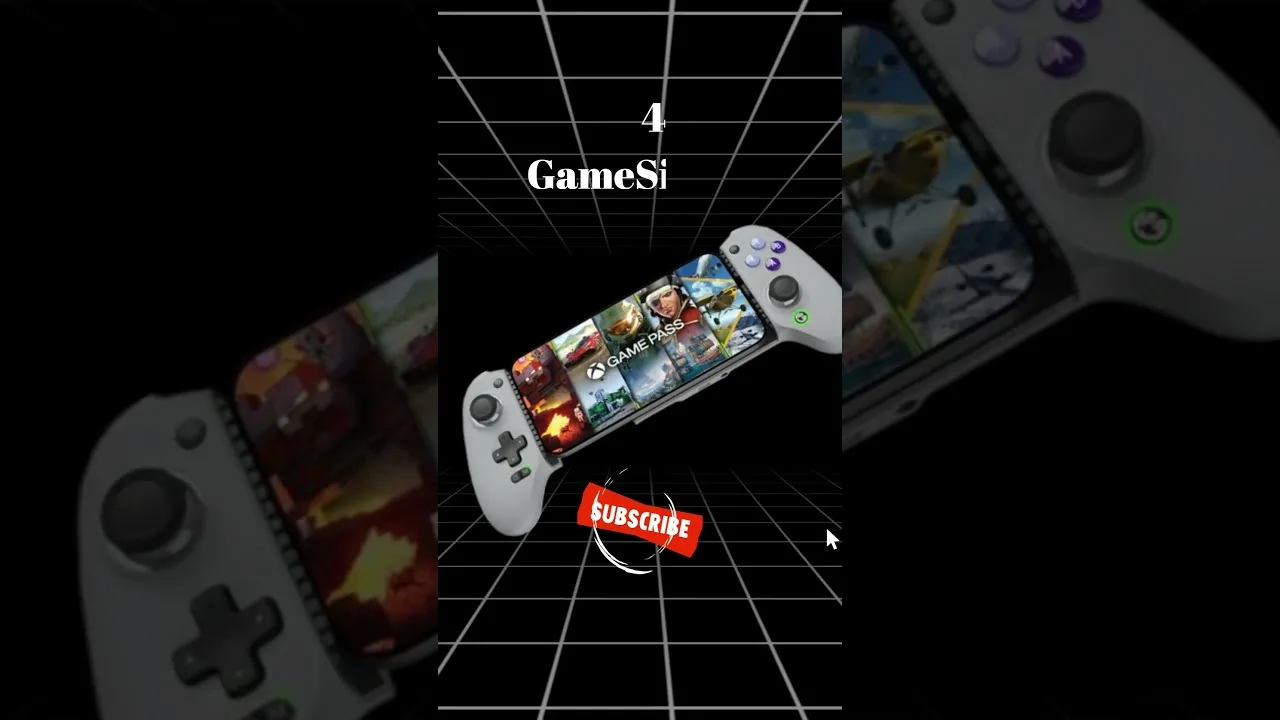
Telescopic controllers grip the phone at both ends and turn it into something that feels like a handheld console. They connect by USB-C on many models, which removes Bluetooth delay entirely, and they keep the screen centred between your hands — a setup that suits long sessions and travel equally well.
Clip mounts are the lighter alternative: a standard controller plus a phone holder. They cost less and let you keep a controller you already like, though the weight balance sits higher in your hands. Either style pairs nicely with the game picks in our list of the best games to play on Up Cloud Gaming, where most titles assume real sticks and buttons.
Telescopic models also protect your phone's posture in your hands: the weight sits low and centred, your wrists stay neutral, and the screen is always at the angle you choose. For players coming from handheld consoles, this style feels instantly familiar, and the phone stops feeling like a phone at all once a game starts.
Latency, Connection, and Compatibility Checks
Bluetooth controllers add a small amount of input delay, usually only noticeable in very fast games. USB-C controllers avoid that step. Whichever you choose, keep the controller charged — low batteries can cause missed inputs that look exactly like network lag.
Before buying, confirm the controller supports Android and standard gamepad input. The platform overview in our Up Cloud Gaming features guide explains how the app handles input, and it is worth a quick read before you spend on accessories.
Budget Picks and What to Skip
You do not need to spend much. Well-reviewed budget controllers from established accessory brands cover the basics well: reliable pairing, decent sticks, and honest battery life. Where cheap controllers cut corners is usually stick quality and D-pad feel, so read reviews that mention those specifically.
Skip controllers with no clear Android support, unknown-brand models with no reviews, and anything that needs a separate companion app just to map buttons. Simple and standard beats clever and fragile, every time.
Whatever you buy, keep the receipt until you have played your fastest game on it for a full session. Button feel and stick tension reveal themselves under real play, not in a shop. A controller that survives that honest test without a single moment of annoyance is the right one, whatever its price.
Final Thoughts
Start with what you have, upgrade only where it hurts, and prioritise connection reliability and stick quality over extras. A controller you trust disappears during play — and that is exactly what cloud gaming needs, because your attention should be on the game, not the gear.