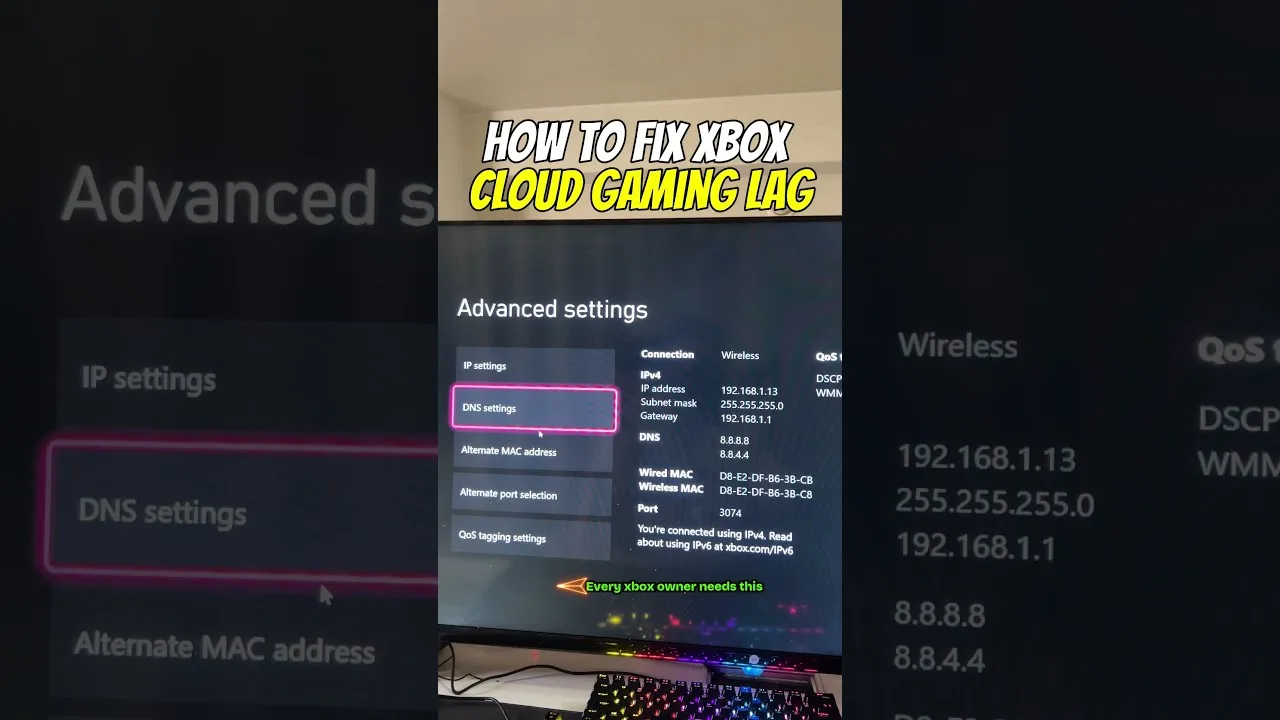
Lag in cloud gaming is the delay and unevenness you feel when the stream cannot keep up with your inputs. It is rarely caused by one big problem; more often it is several small ones stacked together — a busy network, a distant router, background apps, and settings that ask too much of the connection.
The good news is that most of those small problems are free to fix. This guide works through them in order, starting with the checks that solve most cases for Up Cloud Gaming players before any money or new hardware enters the picture.
First, Know Which Lag You Have
Players use the word lag for three different problems. Input lag is the delay between pressing a button and seeing the result. Network lag shows up as jumps, freezes, or rubber-banding. Picture stutter looks like choppy motion even when inputs feel fine. Each one has different fixes, so spend a minute identifying yours before changing settings at random.
A simple test helps: stand still in a game and tap a button repeatedly. If the response is consistently late, you are dealing with latency. If the game hitches while moving through busy scenes, stability or picture load is more likely the cause.
One more distinction helps: lag that is constant is usually a distance or routing issue, while lag that comes and goes is usually congestion or interference. Constant lag calls for realism about settings; variable lag calls for detective work on your network at the times it strikes. Noting when lag appears is the cheapest diagnostic tool you own, and it points every later fix in the right direction.
Fix the Connection Before the Settings
Most lag starts with the network. Move closer to the router, switch to the 5 GHz Wi-Fi band, and pause downloads, updates, and streaming on other devices while you play. These three steps alone solve the majority of complaints, because they cut both latency and interference at the same time.
It also helps to know what your line can actually deliver. Our breakdown of Up Cloud Gaming internet requirements explains the speed and ping ranges worth aiming for, so you can tell whether your connection or your setup is the weak link.
Cut Latency on the Device Itself
Your phone can add delay too. Close apps running in the background, especially anything syncing photos, updating, or downloading. Turn off battery-saver modes while playing, since they can throttle performance and network activity. Restarting the phone before a long session clears out a surprising amount of accumulated sluggishness.
If you use a Bluetooth controller, keep it charged and close to the phone; a weak controller battery or a busy Bluetooth environment can add small but noticeable input delay. A wired connection, where your controller supports one, removes that variable entirely.
Also check the phone's temperature and storage. A hot phone throttles itself, and a phone with almost no free storage handles background tasks clumsily, both of which surface as small delays that feel like network lag. Keeping a few gigabytes free and letting the device cool between long sessions costs nothing and quietly removes two causes players rarely suspect.
Adjust the Stream, Not Just the Game
When the network cannot be improved, ask less of it. Lowering the stream quality reduces the data the connection must carry every second, which often cuts both latency and stutter. It is a trade: a slightly softer picture in exchange for controls that answer when you press them.
If your problem is choppy motion rather than delayed inputs, the fixes overlap but are not identical. Our guide on how to fix stuttering in Up Cloud Gaming focuses on frame pacing and picture stability specifically.
There is also a middle path between enduring lag and replacing your internet plan: play the right games on the wrong network. Turn-based strategy, card games, slow adventures, and management titles forgive delay that would ruin a shooter. Keeping a small rotation of lag-tolerant games for busy evenings means a poor connection changes your menu, not your mood. Then, when the house is quiet and the network is calm, the fast games come back out and feel better than ever — partly because the connection improved, and partly because you stopped asking it to do the impossible at the worst possible hour of the day.
Habits That Keep Sessions Smooth
Play at times when your household network is quieter, keep the router in an open spot away from thick walls and metal objects, and restart the router every few weeks to clear its own slowdowns. Small habits compound: each one removes a little friction from the path between your inputs and the server.
Finally, test one change at a time. If you adjust five things at once and the game improves, you will not know which fix mattered — and when lag returns, you will not know where to look first.
Keep a short note of what worked. Lag tends to return in new forms as households change — a new device streaming video, a router moved during cleaning, a neighbour's new network on your channel. When it does, your notes turn a frustrating evening of guesswork into a five-minute checklist, because you already know which fixes your setup responds to.
Final Thoughts
Reducing lag is a process of elimination: steady the connection, lighten the load on your phone, then tune the stream. Work through the steps in order, test after each change, and most players end up with a noticeably sharper, calmer session without changing their internet plan.